
This guide will help you How to Configure Your DayZ Server for the Livonia (Enoch) Map
If you're looking to offer a fresh survival experience, switching your DayZ server to the Livonia (Enoch) map is a great option. Featuring dense forests, winding rivers, and a more compact landscape than Chernarus, Livonia encourages closer player encounters, strategic exploration, and a unique survival experience. In this guide, you'll learn how to configure your DayZ server to use the Livonia (Enoch) map. We'll walk you through updating the server configuration, setting the correct mission file, and applying the necessary changes to ensure your server starts successfully. Once everything is configured, your server will be ready for players to explore the challenging world of Livonia.
Switching Your DayZ Server to the Livonia (Enoch) Map
1. Log in to your Game Control Panel, then head over to your server service.
2. Before making any changes, stop the server by clicking the Stop button.

3. Navigate to the Configuration Files Tab.
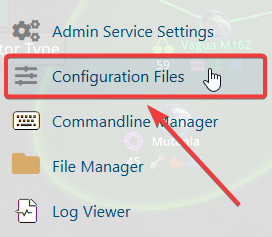
4. In the configuration files section, locate the serverDZ.cfg file, then click Text Editor next to it to open and edit the file.

5. Once the configuration file opens, find the class Mission section. Replace the existing Mission parameter value with:
"dayzOffline.enoch"
This will set your DayZ server to load the Chernarus map.
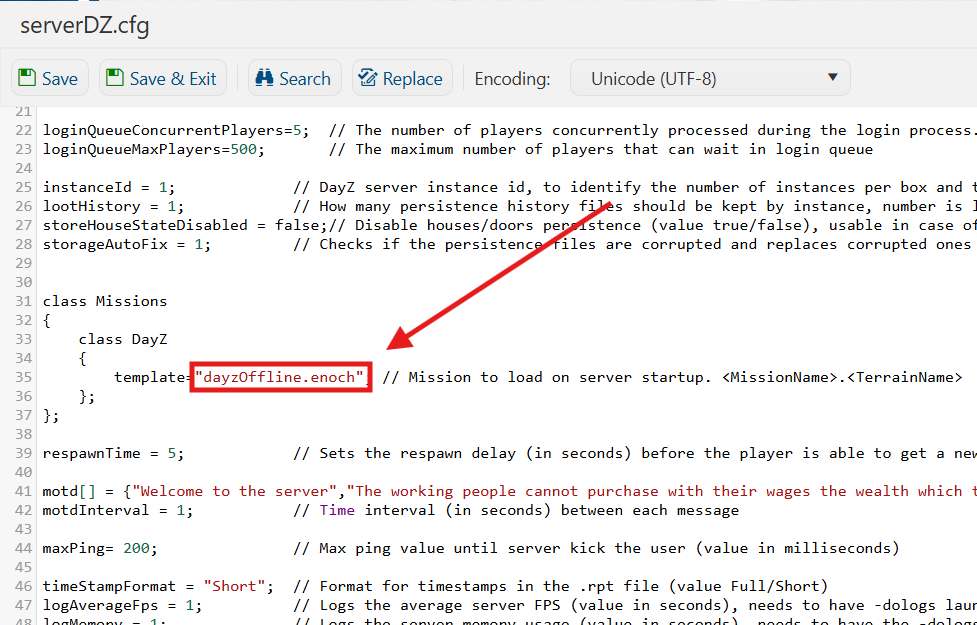
6. After editing, click the Save button to apply the changes to your server.

7. Start your server. Once the server has successfully started, you can join and enjoy playing on the Livonia map.
If you encounter any issues, please click here to contact our support team via a ticket for further assistance.