

This guide will show you with Editing Server Name, World Name, and Password in your Necesse Server
Looking for a Necesse Game Server? Click here to order now!
Editing your server name, world name, and password in Necesse is an essential part of setting up a clean, organized, and secure multiplayer environment. Whether you’re customizing your server’s identity, preparing a new world, or restricting access to trusted players, these settings define how your server appears and how others connect to it. This section walks you through where to find these options, what each field controls, and how to apply your changes properly. By updating these core details, you ensure your Necesse server is easy to identify, secure, and tailored to the experience you want to host.
Changing Server Name, World Name, and Password
1. Log in to your Game Control Panel and navigate to your service.
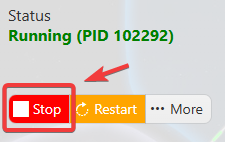
2. Before making any modifications, stop the server from running by clicking the Stop button.
3. Navigate to the Configuration Files Tab.
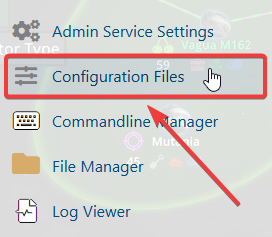
4. A list of editable configuration files will appear, such as server.cfg and worldSettings.cfg.
5. Select Text Editor next to server.cfg. This will open a configuration layout like the example below.

6. To set a custom server password, look for the following line: password = test, // Leave blank for no password. Replace “test” with your chosen password. For example:password = AscendServers,

7. Click Save, and restart your server from the main Game Panel to load the new configuration.

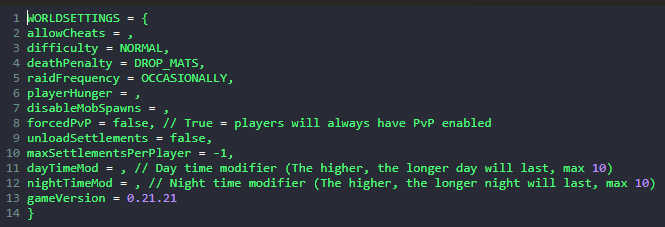
Set each value to your desired configuration, save the file, and restart your server to load the new gameplay settings.
If you encounter any issues, please click here to contact our support team via a ticket for further assistance.