

This guide will show you how to Customize Campaign Gameplay on your Barotrauma Server
Order a Barotrauma Server today with Ascend Servers
Customizing campaign gameplay on your Barotrauma server gives you full control over how your crew progresses, how difficult missions feel, and how dynamic the world becomes as players explore Europa. By adjusting campaign parameters directly in your server configuration, you can fine‑tune everything from starting resources and mission pacing to outpost behavior and overall challenge level. This introduction prepares you for a clear, structured walkthrough of the key settings so you can shape a campaign experience that fits your server’s goals, whether you’re aiming for a relaxed cooperative journey or a high‑stakes survival run.
Configuring Campaign Settings for Your Barotrauma Server
1. Connect to your server, then select Campaign from the available game modes.
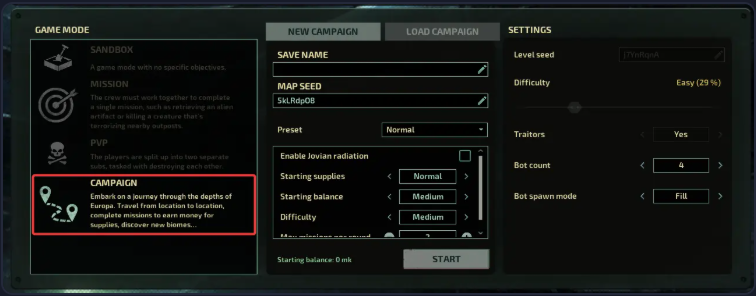
2. Type in your desired save name and pick a preset configuration to begin.
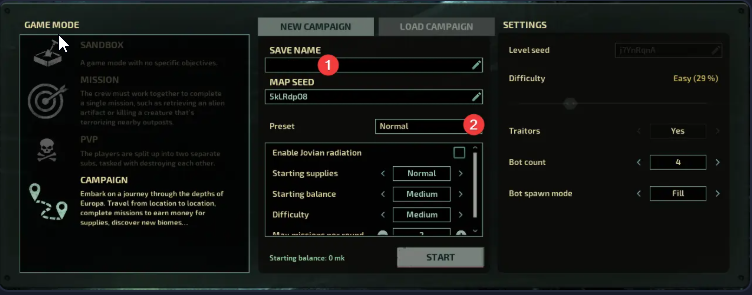
3. Select Start to initialize your customized campaign.
Setting Up Campaign Default Options
You can also adjust the default campaign settings directly through your server’s control panel.
1. Log in to your Game Control Panel, then head over to your server service.
2. Before making any changes, stop the server by clicking the Stop button.

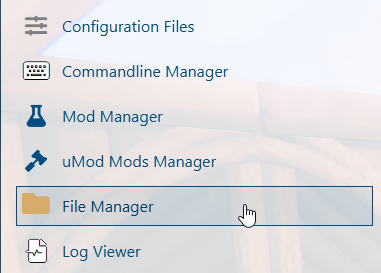
3. Navigate to the File Manager Task section.
4. Access the campaignsettings.xml file, click Edit, and modify the campaign settings to suit your setup.
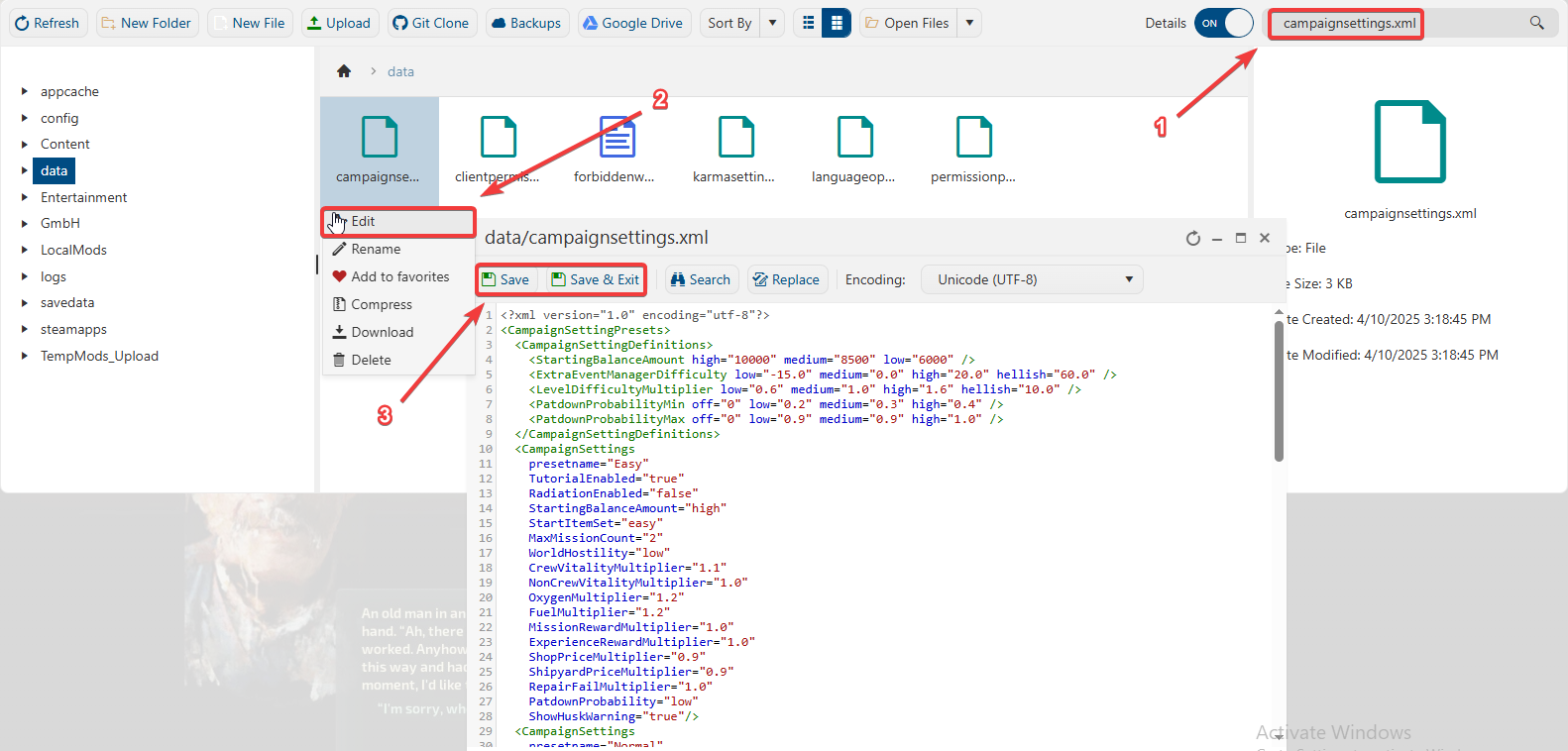
This file lets you customize the default settings for all three campaign types. Below is a list of the available options, each with a brief description to help you understand what they control.
| Option | Description |
|---|---|
| StartingBalanceAmount | Defines the amount of starting money given to players. |
| ExtraEventManagerDifficulty | The frequency and difficulty of random events. |
| LevelDifficultyMultiplier | Difficulty setting affects how the level is generated. On higher difficulty levels, there are more environmental hazards, larger numbers of creatures, and more dangerous enemies. |
| presetname | The name of the campaign settings preset. |
| TutorialEnabled | Whether the tutorial is shown to players. |
| RadiationEnabled | Disables or enables Jovian Radiation. |
| Difficulty | The difficulty of the preset as defined in the LevelDifficultyMultiplier option at the start of the file. |
5. After making changes, click the Save button to apply.

If you encounter any issues, please click here to contact our support team via a ticket for further assistance.