

This guide will show you how to configure the Karma System on your Barotrauma Server
Order a Barotrauma Server today with Ascend Servers
The Karma System in Barotrauma is designed to encourage cooperative play, discourage griefing, and maintain a healthy multiplayer environment. By configuring it on your server, you control how player behavior is monitored, how penalties are applied, and how strict or forgiving your community rules should be. This introduction prepares you to adjust the Karma System’s core parameters so you can tailor its impact, whether you want a lightly moderated experience or a tightly managed server where disruptive actions are quickly addressed.
Method 1: Configuring the Karma System on Your Barotrauma Server
1. Connect to the server as an admin. Need help becoming an admin? Click here for the setup guide.
2. Open the Settings tab.
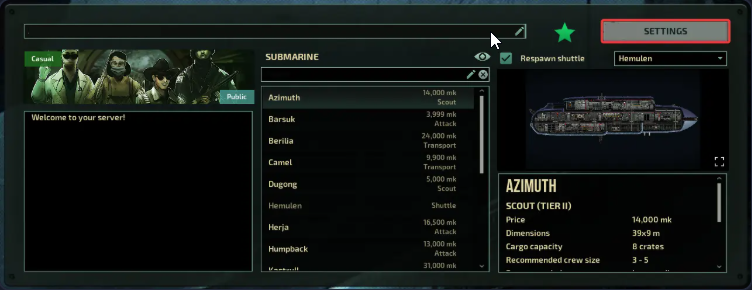
3. Go to the Anti‑Griefing tab.
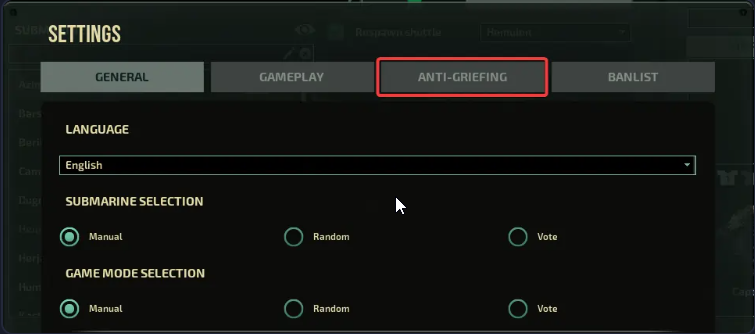
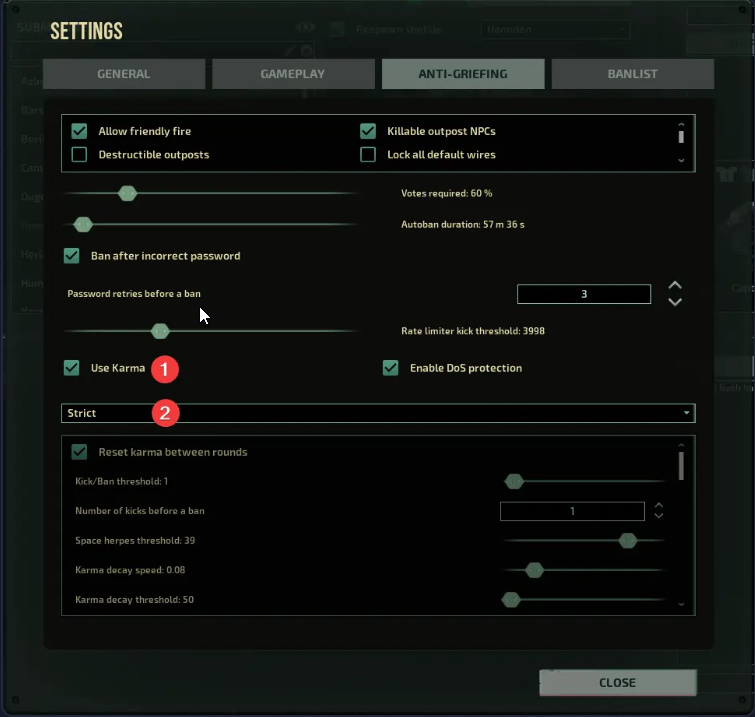
4. Tick the Use Karma option and pick a Karma Mode that fits your server’s rules.
5. Select Custom in the dropdown menu to access additional configuration settings and modify them as necessary.
6. Press Close to apply your settings and exit the menu.
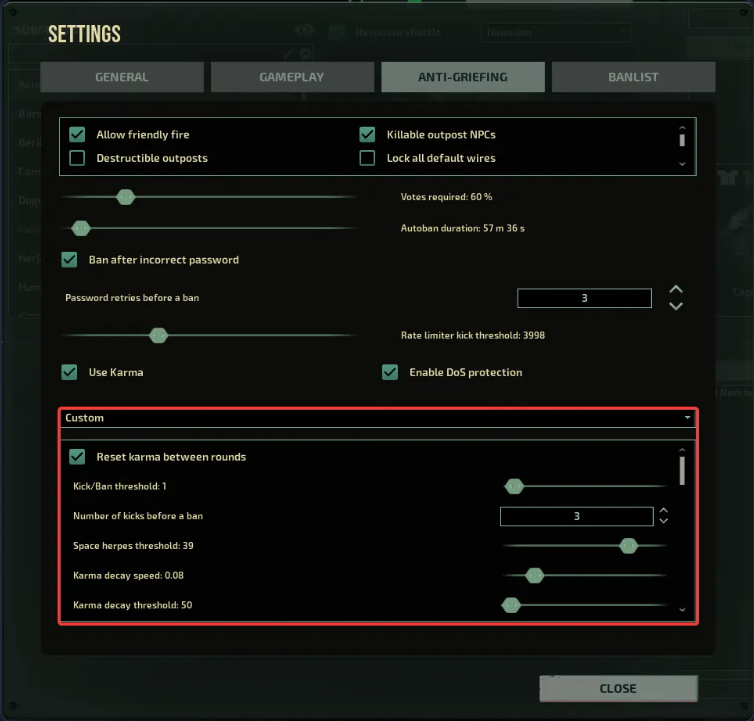
This provides a personalized anti‑griefing configuration optimized for your server environment.
Method 2: Configuring the Karma System using Configuration Files
1. Log in to your Game Control Panel, then head over to your server service.
2. Before making any changes, stop the server by clicking the Stop button.

3. Navigate to the File Manager Task section.
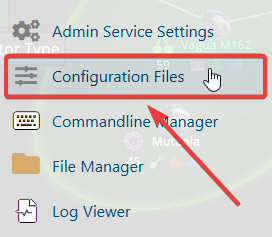
4. Find the karmasettings.xml file, choose Edit File, and customize the Karma values and behavior as needed.
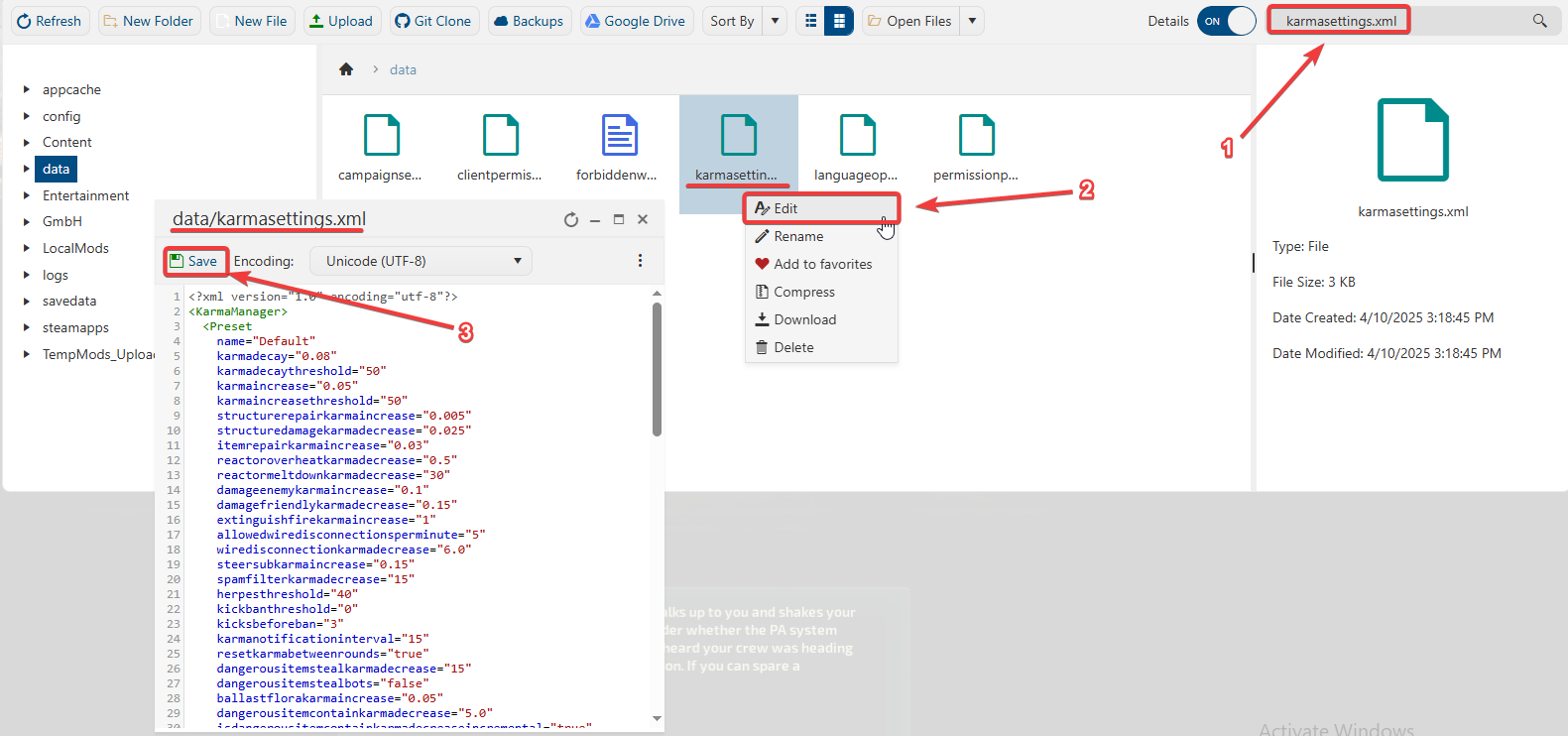
5. After making changes, click the Save button to apply.

If you encounter any issues, please click here to contact our support team via a ticket for further assistance.