

This guide will show you how to Set Up and Customize Your Barotrauma Server
Order a Barotrauma Server today with Ascend Servers
Setting up and customizing your Barotrauma server lets you define exactly how players experience Europa, from connection rules and performance behavior to gameplay settings that shape every mission. By configuring your server’s core parameters, you ensure stable hosting, consistent player access, and a gameplay environment tailored to your community’s expectations. This introduction prepares you for a clear, structured walkthrough of the essential setup steps and customization options so you can build a server that runs smoothly and delivers the kind of Barotrauma experience you want your players to have.
Configuring a Barotrauma Server
1. Log in to your Game Control Panel, then head over to your server service.
2. Before making any changes, stop the server by clicking the Stop button.

3. Navigate to the Configuration Files Task section.
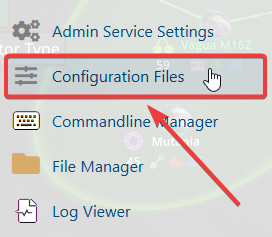
4. Choose Configor TextEditor next to serversettings.xml to modify it.

5. In the Config Editor, You’ll be presented with every server parameter you can adjust. We suggest using this method since it offers a clearer, more accessible editing experience.
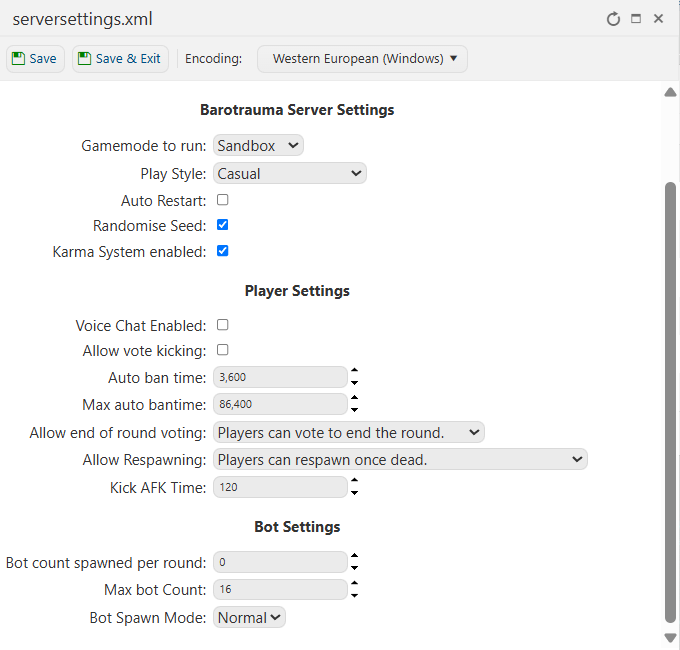
Within the Text Editor, you can edit the configuration values however you like.
This approach keeps all your custom modifications, like mods and custom scenarios, safe from being replaced by the Config Editor preset.
name="Barotrauma Server"
public="true"
port="14242"
queryport="14243"
password=""
enableupnp="false"
autorestart="False"
LevelDifficulty="20"
ServerMessage="www.citadelservers.com"
HiddenSubs=""
AllowedRandomMissionTypes="Salvage, Monster, Cargo, Combat"
AllowedClientNameChars="32-33,38-46,48-57,65-90,91-91,93-93,95-122,192-255,384-591,1024-1159,1162-1279,19968-21327,21329-40959,13312-19903,131072-173791,173824-178207,178208-183983,63744-64255,194560-195103"
TickRate="20"
RandomizeSeed="True"
UseRespawnShuttle="True"
RespawnInterval="300"
MaxTransportTime="180"
MinRespawnRatio="0.2"
AutoRestartInterval="60"
StartWhenClientsReady="False"
StartWhenClientsReadyRatio="0.8"
AllowSpectating="True"
SaveServerLogs="True"
AllowModDownloads="True"
AllowRagdollButton="True"
AllowFileTransfers="True"
VoiceChatEnabled="False"
PlayStyle="Casual"
LosMode="Transparent"
LinesPerLogFile="800"
AllowVoteKick="True"
AllowEndVoting="True"
AllowRespawn="True"
BotCount="0"
MaxBotCount="16"
BotSpawnMode="Normal"
DisableBotConversations="False"
AllowDisguises="True"
AllowRewiring="True"
LockAllDefaultWires="False"
AllowLinkingWifiToChat="False"
AllowFriendlyFire="True"
DestructibleOutposts="False"
KillableNPCs="True"
BanAfterWrongPassword="True"
MaxPasswordRetriesBeforeBan="3"
SelectedSubmarine=""
SelectedShuttle=""
TraitorsEnabled="No"
TraitorsMinPlayerCount="1"
TraitorsMinStartDelay="90"
TraitorsMaxStartDelay="180"
TraitorsMinRestartDelay="30"
TraitorsMaxRestartDelay="90"
SubSelectionMode="Manual"
ModeSelectionMode="Manual"
EndVoteRequiredRatio="0.6"
VoteRequiredRatio="0.6"
VoteTimeout="30"
KickVoteRequiredRatio="0.6"
DisallowKickVoteTime="120"
KillDisconnectedTime="300"
KickAFKTime="120"
KarmaEnabled="True"
KarmaPreset="default"
GameModeIdentifier="Sandbox"
MissionType="All"
MaxPlayers="6"
AutoBanTime="3600"
MaxAutoBanTime="86400"
LootedMoneyDestination="Bank"
MaximumMoneyTransferRequest="999999">
6. When you’re done adjusting your settings, click Save in the Text Editor or Config Editor to apply everything you’ve configured.

If you encounter any issues, please click here to contact our support team via a ticket for further assistance.