

This guide will help you how to set up your authentication token on your Hytale Server.
Click here to order your Hytale server with Ascend Servers today!
Running a Hytale server isn’t just about creating exciting worlds it’s also about keeping those worlds secure and accessible to the right players. That’s where authentication tokens come in. These tokens act like digital keys, verifying identities and ensuring that only authorized users or applications can connect to your server. Setting up an authentication token is a critical step for server administrators who want to protect their community from unwanted access while maintaining smooth gameplay. Tokens help manage permissions, safeguard sensitive data, and create a reliable connection between the game client and the server. In this guide, we’ll walk through the essentials of configuring your authentication token, from generating it to applying it in your server settings. By the end, you’ll have a secure foundation that not only keeps your server protected but also ensures your players can join without unnecessary complications.
Important:
A single Hytale game license supports authentication for up to 100 simultaneously active servers. This limit ensures fair resource allocation and helps maintain stability across the network. If your project requires hosting more than 100 servers at once such as for large-scale communities or enterprise deployments you will need to obtain additional licenses or secure an approved provider entitlement from Hypixel Studios. This entitlement grants expanded capacity and is designed for organizations or hosting providers who manage extensive server infrastructures.
Device Authorization (Recommended Method)
The device authorization method works on headless servers and does not require a browser on the server itself.
1. Log in to your Game Control Panel and navigate to your service.
2. Before making any modifications, stop the server from running by clicking the Stop button.

3. Navigate to the Web-Console Tab.
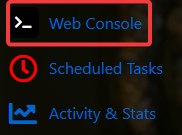
4. Navigate to the Web-Console tab and intitate your login. Execute the following command:
/auth login device
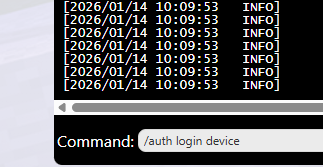
5. Open the Authorization Page. Once the command has been executed, the console will return an output. You should expect to see a message resembling the following:
============================================================DEVICE AUTHORIZATION============================================================Visit: https://accounts.hytale.com/deviceEnter code: ABCD-1234Or use: https://accounts.hytale.com/device?user_code=ABCD-1234============================================================Waiting for authorization (expires in 900 seconds)...

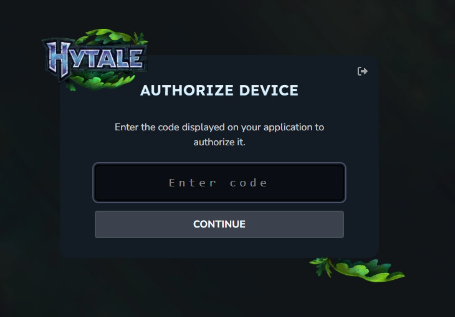
6. Approve the Server. Open the provided link using any device with a web browser and sign in to your Hytale account. If prompted, enter the authorization code to verify your identity. Finally, confirm server access to complete the setup process.
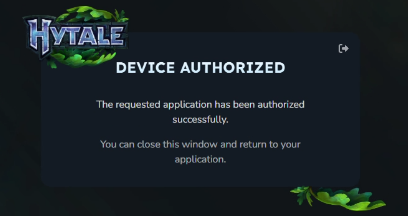
7. Authentication Complete. After approval, the server console will display a confirmation message indicating that authentication was successful. At this point, your server is fully verified and ready to accept player connections.
Authentication successful! Mode: OAUTH_DEVICE
8. Run the command below in the web console:
/auth persistence Encrypted
This action permanently stores the authentication token on the server, ensuring it remains available for future access and validation.
All Set! You can then follow our Quick Start Guide.
Checking Authentication Status
To confirm your server is authenticated, run:
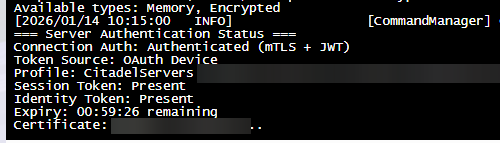
Authentication Commands Reference
| Command | Purpose |
|---|---|
/auth login device |
Starts device-based authentication (recommended) |
/auth login browser |
Starts browser-based login (requires desktop access) |
/auth select <number> |
Choose a profile if multiple accounts are detected |
/auth status |
Displays current authentication state |
/auth cancel |
Stops an active login attempt |
/auth logout |
Clears authentication data and logs out |
Authentication Token Behavior
Hytale relies on OAuth tokens to ensure secure and authenticated server access. These tokens are designed to refresh automatically as long as the server remains online, providing continuous protection without requiring manual intervention.
| Token Type | Valid Duration | Description |
|---|---|---|
| Access Token | ~1 hour | Used for session creation |
| Refresh Token | ~30 days | Renews access tokens |
| Game Session | ~1 hour | Automatically renewed before expiry |
Common Issues & Fixes
Authentication Failed at Startup
If the server starts without authentication, try the following:
1. Re-run /auth login device
2. Ensure the token has not expired
3. Verify the account has the correct permissions
When Re-Authentication Is Required
You may need to log in again if:
- The server was offline for over 30 days
- You manually logged out
- Account credentials were changed
If you encounter any issues please click here to reach out to our support team via a ticket for further assistance.