

This guide will help you learn how to Set Up Automatic Restarts on your Hytale Server.
Click here to order your Hytale server with Ascend Servers today!
Running a Hytale server means keeping your world stable, responsive, and enjoyable for players at all times. Over long play sessions, servers can accumulate memory usage, experience lag, or even crash unexpectedly. One of the most effective ways to prevent these issues is by configuring automatic restarts. Automatic restarts allow your server to refresh itself on a schedule you define, whether daily, weekly, or during off‑peak hours. This ensures smoother performance, reduces downtime, and helps maintain a consistent experience for your community without requiring constant manual oversight. In this guide, we’ll walk through the steps to set up automatic restarts, explain how to choose the right schedule for your server, and share best practices to keep your Hytale world running at its best. By the end, you’ll have a reliable system in place that keeps your server healthy and your players happy.
Setting Up Automatic Restarts on your Hytale Server
1. Log in to your Game Control Panel, then head over to your server service.
2. Before making any changes, stop the server by clicking the Stop button.

3. Navigate over to the Scheduled Task section.
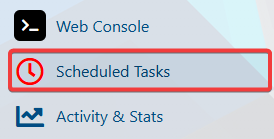
4. In the Scheduled Task tab, click New and select the Stop/Start/Restart action.
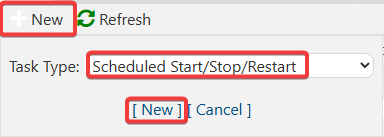
5. After clicking the New button, the Restart Schedule page will appear. Configure it according to your preferred restart timing.
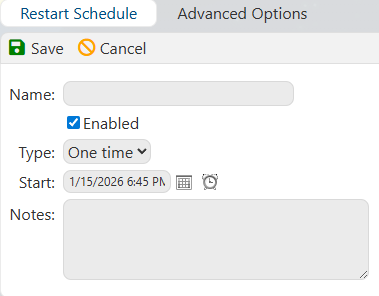
You can also select the Advanced Option to access additional restart settings.
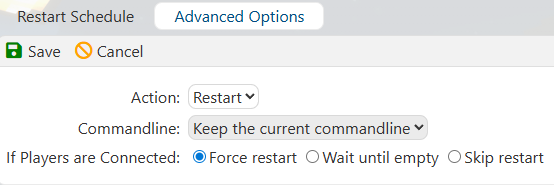
6. Once you're done with configuring your restart schedule, click the Save button to apply the changes to your server.

That’s it, your Hytale server will now restart automatically according to the schedule you’ve set, ensuring optimal performance and keeping your world running seamlessly.
If you encounter any issues, please click here to contact our support team via a ticket for further assistance.