

This guide will help you learn how to configure HytaleServer Settings.
Click here to order your Hytale server with Ascend Servers today!
Running a HytaleServer isn’t just about getting it online; it’s about tailoring the experience to fit your world, your players, and your goals. Whether you’re setting up your first server or fine‑tuning advanced options, proper configuration ensures smoother gameplay, stronger security, and a community that thrives. In this guide, we’ll walk through everything you need to know to configure your HytaleServer settings step by step. From adjusting performance parameters and customizing game rules to managing player permissions and optimizing stability, you’ll gain the tools to transform your server into a polished, reliable hub. By the end, you’ll not only understand the mechanics behind HytaleServer configuration but also feel confident in shaping a server environment that reflects your vision.
Setting Up Your HytaleServer
1. Log in to your Game Control Panel and navigate to your service.
2. Before making any modifications, stop the server from running by clicking the Stop button.

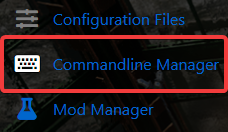
3. Access your settings by navigating to the Configuration Files tab or the Commandline Manager tab.
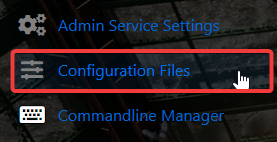
4. On the Configuration Files tab, click the Config Editor button to adjust your server settings. A pop‑up window will appear, allowing you to quickly modify essential options such as the server name, password, and other basic configurations without the need to edit files manually. For those who want deeper control, switch to the Text Editor. This mode lets you directly edit the configuration file contents, giving you the flexibility to fine‑tune advanced settings beyond the standard options.

5. In the Commandline Manager, begin configuring your server by selecting the command line you want to activate. Most control panels typically offer at least two choices: a default line for standard setups and a modded line for customized configurations.
Click Modify on your selected command line to open the editable settings. Here, you can adjust key details such as the server name and password. You’ll also have the ability to specify which mods and configuration files should load automatically when the server starts, giving you full control over how your server runs.

6. Once you’ve finished making your changes, scroll down and click Apply. This will save your updates and immediately activate the new settings on your server.

If you encounter any issues, please click here to contact our support team via a ticket for further assistance.