

This guide will help you learn how to Customize Player Capacity on your Hytale Server.
Click here to order your Hytale server with Ascend Servers today!
Managing player capacity is one of the most important aspects of running a successful Hytale server. The number of players you allow impacts performance, community engagement, and the overall gameplay experience. A server with too few slots may feel empty, while one with too many can strain resources and cause lag. By customizing player capacity, you gain full control over how your server operates. Whether you’re hosting a small private world for friends or building a large-scale community hub, adjusting player limits ensures that your server runs smoothly and matches the needs of your audience. With the right setup, you’ll be able to create a stable, enjoyable environment where players can connect and thrive.
Adjusting Player Limits for Hytale Servers
1. Log in to your Game Control Panel and navigate to your service.
2. Before making any modifications, stop the server from running by clicking the Stop button.

3. Navigate to the Configuration Files Tab.
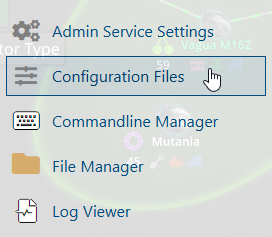
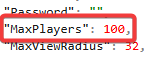
4. Navigate to the config.json file in your Configuration Files and find the Max Players entry.

Set the Max Players value to define how many players can join your server.
5. After editing, click the Save button to apply the changes to your server.

If you encounter any issues, please click here to contact our support team via a ticket for further assistance.