

This guide will help you learn how to Change View Distance on your Hytale Server.
Click here to order your Hytale server with Ascend Servers today!
View distance is an important setting that directly affects how players experience your Hytale server. It determines how far into the world players can see, influencing both immersion and performance. A higher view distance allows players to take in vast landscapes and spot structures from afar, while a lower view distance can improve server performance and reduce lag, especially useful when hosting larger communities or running on limited hardware. By learning how to change and manage view distance, you can strike the right balance between visual quality and smooth gameplay. Whether you want to maximize exploration or optimize performance, adjusting this setting gives you greater control over the player experience. In this guide, we’ll walk through the steps to configure view distance on your Hytale server, helping you tailor the environment to your community’s needs.
Adjusting Max Distance in Hytale Servers
1. Log in to your Game Control Panel and navigate to your service.
2. Before making any modifications, stop the server from running by clicking the Stop button.

3. Navigate to the Configuration Files Tab.
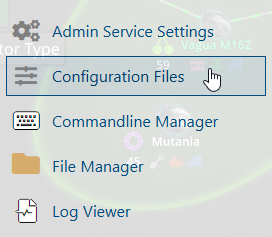
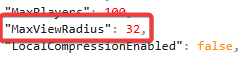
4. In the Configuration Files section, locate the config.json file and find the MaxViewRadius line.

Set the MaxViewRadius value according to your preferred viewing distance.
5. After editing, click the Save button to apply the changes to your server.

If you encounter any issues, please click here to contact our support team via a ticket for further assistance.