

This guide will help you learn how to install the LuckPerms Mod on your Hytale Server.
Click here to order your Hytale server with Ascend Servers today!
LuckPerms is one of the most powerful and flexible permission management tools available for game servers, and adding it to your Hytale server can make managing players, ranks, and permissions far easier. Instead of manually editing configuration files or juggling multiple permission entries, LuckPerms gives you a clean, organized system with commands, groups, and an intuitive structure that scales with your server’s needs. In this guide, you’ll learn how to install the LuckPerms mod on your Hytale server step by step. Whether you're setting up a small private world or preparing a large community server, this process will help you streamline permission management and keep everything running smoothly.
Installing LuckPerms on your Hytale Server
1. Download the LuckPerms mod from this link.
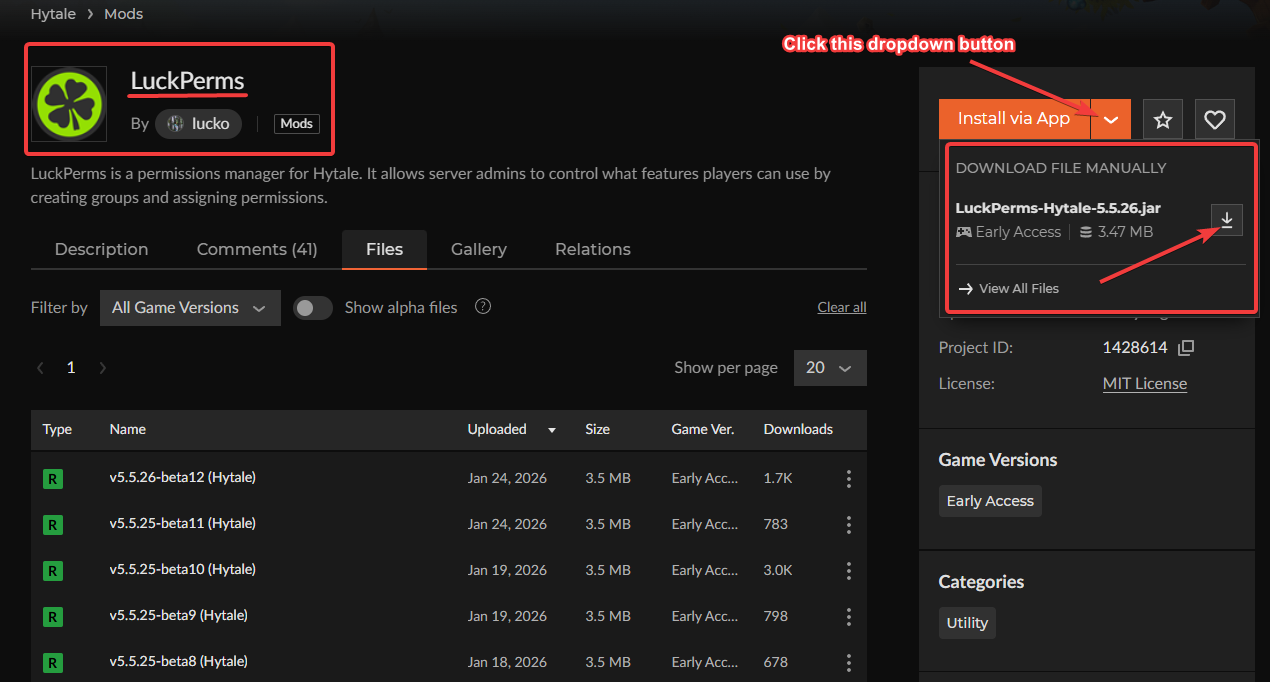
2. Log in to your Game Control Panel and navigate to your service.
3. Before making any modifications, stop the server from running by clicking the Stop button.

4. Navigate to the File Manager Tab.
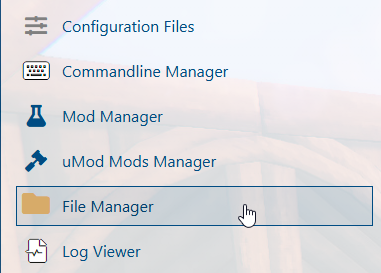
5. In the File Manager tab, open the mods folder and upload the LuckPerms .jar file.
For uploading the file, we highly recommend using an FTP client such as FileZilla. If you need help setting it up, you can refer to our detailed guide here.
6. Verify that the LuckPerms mod is running by checking the Web‑Console tab for any confirmation messages or startup logs.

7. To configure LuckPerms directly in‑game, use the following command:
Code:
/lp user <PlayerName> permission set luckperms.* true
This command grants the selected player full access to all LuckPerms permissions, allowing them to manage roles and settings directly within the server.
NOTE
To grant a player access to all commands, use the following command:
Code:
/lp user <playername> permission set *
This level of permission should only be given to trusted administrators or server owners, as it provides complete control over the server.
8. To open the LuckPerms web editor, simply enter:
/lp editor


This command generates a link to the LuckPerms web editor, where you can easily manage and customize permissions through a user‑friendly interface.


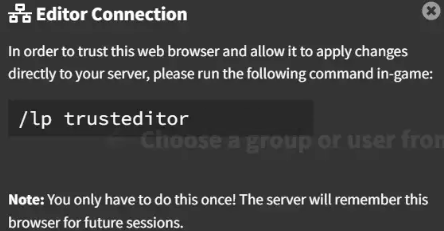
9. Open the generated editor link, then copy the command that appears in your browser.


10. Paste the link into your in‑game console to apply the changes.


11. Once you’re connected, return to the LuckPerms editor to configure the permissions you want for your players or groups, then click Apply to save your changes.

How to Create an Admin Group with LuckPerms on Your Hytale Server
1. Log in to your Game Control Panel and navigate to your service.
2. Before making any modifications, stop the server from running by clicking the Stop button.
3. Navigate to the Web-Console Tab.
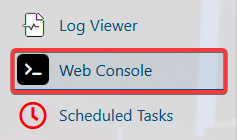
4. Open the LuckPerms web editor by entering the following command:
/lp editor
5. Open the generated editor link, then copy the command that appears in your browser.
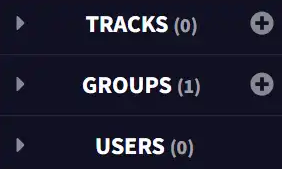
6. In the Groups tab, click the+(plus) icon to create a new group. This allows you to set up a fresh set of permissions and roles tailored to your server’s needs.
7. In the Group Name field, enter admin.
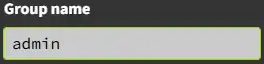
8. Fill in any additional details you’d like, then click Add Group to finalize the creation.
| Option | Description |
| Group name | The code name of the group. |
| Display name | Shows how Luckperms displays the group. |
| Weight | The priority level compared to other groups. |
| Parent | Inherits permissions from another group. |
| Prefix/Suffix | Inserts tags before or after a player's name. |
This adds your new group to the list, making it ready for customization with the permissions you want.
9. In the Groups tab, select adminfrom the list. Then, in the Add Permissions field, enter: hytale.*
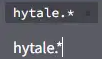
NOTE: Using the hytale.* Permission grants the group full access to every available command. For tighter control, it’s better to assign individual permissions manually so you can fine‑tune exactly what each group is allowed to do.
10. Click the + Add button to include the new permission or setting in your group.

11. In the Users tab, select the player you want to manage. If the player doesn’t appear in the list, you can manually assign them to a group by using the addparent command in the server console.
12. Next to Parent Groups, click the + (plus) icon to add a new parent group, then select Admin. After adding the Admin group, click Apply to save the changes.

This assigns the user to an existing group, giving them all the permissions and roles defined for that group.
13. If prompted, copy the apply link and paste it into the server console to finalize the changes.
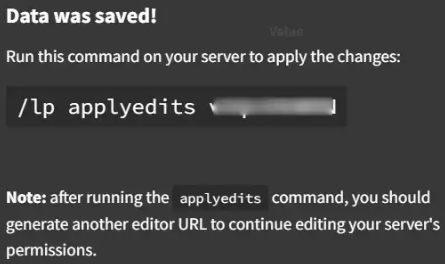
This applies the changes you made in the LuckPerms editor directly to your Hytale server.
LuckPerms Command Essentials for Server Administrators
| Command | Description |
/lp user <playername> parent add <group> |
Adds the player to the group permissions. |
/lp user <playername> parent remove <group> |
Removes the player from the group permissions. |
/lp user <playername> permission set <permission> |
Grants permission to the player. |
/lp user <playername> permission unset <permission> |
Removes the permission from the player. |
/lp group <group> permission set <permission> |
Grants permission to the group. |
/lp group <group> permission unset <permission> |
Removes the permission from the group. |
If you encounter any issues, please click here to contact our support team via a ticket for further assistance.