

This guide will show you how to Modify Your Server’s Difficulty on your 7 Days to Die Server
Order a 7 Days To Die Server today with Ascend Servers.
Adjusting the difficulty of your 7 Days to Die server is one of the most effective ways to shape the survival experience for your players. Whether you want a more forgiving world for newcomers or a brutal, high‑intensity challenge for seasoned survivors, the game’s difficulty settings give you full control over how tough the apocalypse feels. This guide explains what each difficulty option means and shows you exactly how to modify these settings on your server so you can create the gameplay environment that fits your community.
Changing Difficulty on Your 7 Days to Die Server
1. Log in to your Game Control Panel, then head over to your server service.
2. Before making any changes, stop the server by clicking the Stop button.

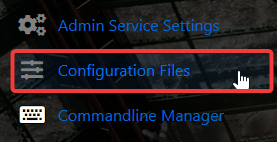
3. Navigate to the Configuration Files Task section.
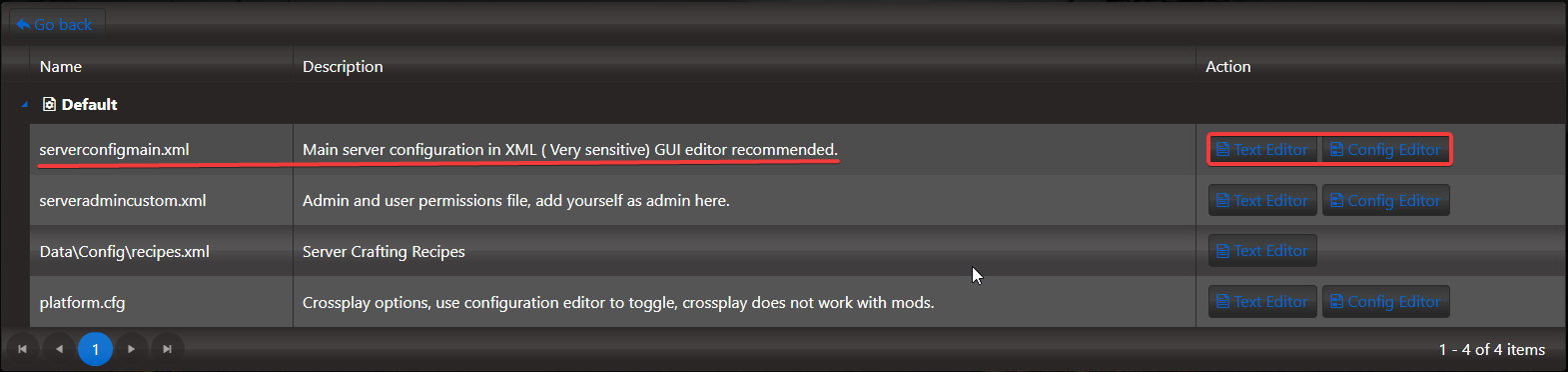
4. Find the serverconfigmain.xml file and open it using the Config Editor to make changes manually.
5. Find the GameDifficulty line in the config and update the value to match the difficulty you want.
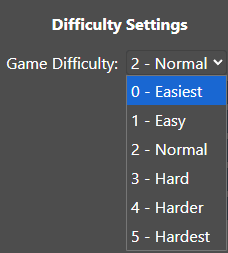
Here is a list of what the difficulty values change:
| 0 - Scavenger | Easiest mode for beginners | Damage from zombies: 50% | Damage from players: 150% |
| 1 - Adventurer | Easy mode | Damage from zombies: 75% | Damage from players: 125% |
| 2 - Nomad | For more experienced players | Damage from zombies: 100% | Damage from players: 100% |
| 3 - Warrior | More challenges | Damage from zombies: 150% | Damage from players: 75% |
| 4 - Survivalist | Even more challenges for experienced players | Damage from zombies: 200% | Damage from players: 50% |
| 5 - Insane | The hardest mode | Damage from zombies: 250% | Damage from players: 25% |
If you want to modify the server name through the file itself rather than the UI, select the Text Editor next to the Config Editor and apply your changes.

This guarantees that your custom additions, like mods or scenario tweaks, are saved and won’t be replaced by the default Config Editor settings.
If you encounter any issues, please click here to contact our support team via a ticket for further assistance.