

The following guide will help you resolve why your server won't update.
How to update your server
First, to update your server, perform these steps:
Get to the Game Panel.
How to update your server
First, to update your server, perform these steps:
Get to the Game Panel.
Click "Steam Update"
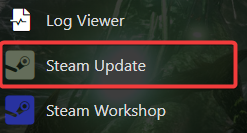
Your server will be stopped and updated; to track its progress, keep the window open until it's finished.
Frequently Ask Questions
Q: After seeing a white screen, nothing appears.
A: It's likely that your web browser's protocol is being blocked by an antivirus program like Bitdefender, Malwarebytes, or another one;
think about temporarily disabling it. Adding the website to your whitelist or viewing the update process on a mobile device
Q: The game control panel shows it as the old version still so it has not updated?!
Q: The game control panel shows it as the old version still so it has not updated?!
A: The game control panel will eventually query your game server to determine its name; however, it will not display the current version. To find out your server's version, please browse your server in Steam servers.
If you encounter any issues please click here to reach out to our support team via a ticket for further assistance.