

This guide will help you with how to Configure Map Rotation Settings on a Killing Floor 2 Server
Take Your Killing Floor 2 Experience to the Next Level with Ascend Servers
Managing the map rotation on your Killing Floor 2 server allows you to control which maps are played and the order in which they appear during your server sessions. This is especially useful if you want to create a custom rotation, remove unwanted maps, or ensure your players cycle through a specific selection of maps. In this guide, we'll show you how to configure the map rotation settings on your Killing Floor 2 server, including how to add, remove, and organize maps to create a rotation that suits your server.
Adjusting the Map Rotations on Your Killing Floor 2 Server
1. Log in to your Game Control Panel, then head over to your server service.
2. Before making any changes, stop the server by clicking the Stop button.

3. Navigate to the Configuration Files Task section.
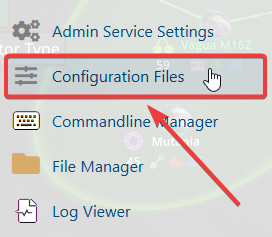
4. From the Configuration Files list, find System\KillingFloor.ini, then select Config Editor to open the file for editing.
5. In the Config Editor, locate the GameMapCycles field and enter the map you want your server to use in its map rotation.
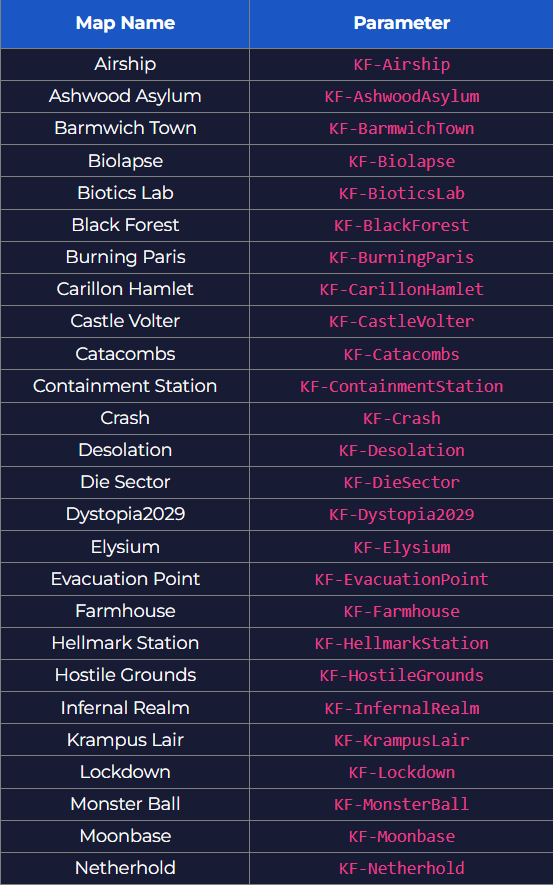
6. When you're finished, click Apply to save your changes, then start the server.
If you encounter any issues, please click here to contact our support team via a ticket for further assistance.