

This guide will help you with how to Customize Game Length on your KF2 Server
Take Your Killing Floor 2 Experience to the Next Level with Ascend Servers
Changing maps on your Killing Floor 2 server allows you to customize the gameplay experience and keep things fresh for your players. Whether you want to switch to a different official map or load a custom workshop map, the process is straightforward once you know where the relevant server settings are. In this guide, we'll walk you through how to change the active map on your Killing Floor 2 server and explain the steps needed to ensure the new map loads correctly.
Changing Game Length Settings on a KF2 Server
1. Log in to your Game Control Panel, then head over to your server service.
2. Before making any changes, stop the server by clicking the Stop button.

3. Navigate to the Commandline Manager Task section.
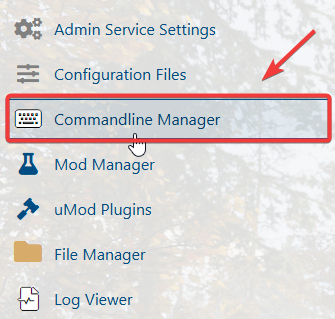
4. In the Configuration Files list, locate System\KillingFloor.ini and click Config Editor to open the file and begin making your changes.
5. In the Config Editor, locate the Game Wave/Round Amount setting and enter the number of rounds you want your server to use.
6. When you're finished, click Apply to save your changes, then start the server.
If you need to preserve custom server settings, use the Text Editor instead of the Config Editor. Click Text Editor next to Config Editor and update the server name directly in the configuration file.
This approach is recommended when your server includes custom settings, mods, custom scenarios, or other manual changes, as it helps prevent those settings from being replaced by the Config Editor's preset values.
If you encounter any issues, please click here to contact our support team via a ticket for further assistance.